
Add Apple Pay purchases automatically
Works on: iPhone.
Premium Try Premium free for 30 days. Pricing and features may change before launch.
Add each Apple Pay purchase to your household's budget without opening the app.
One automation covers every card, so set it up once. Setting it up twice adds every purchase twice.
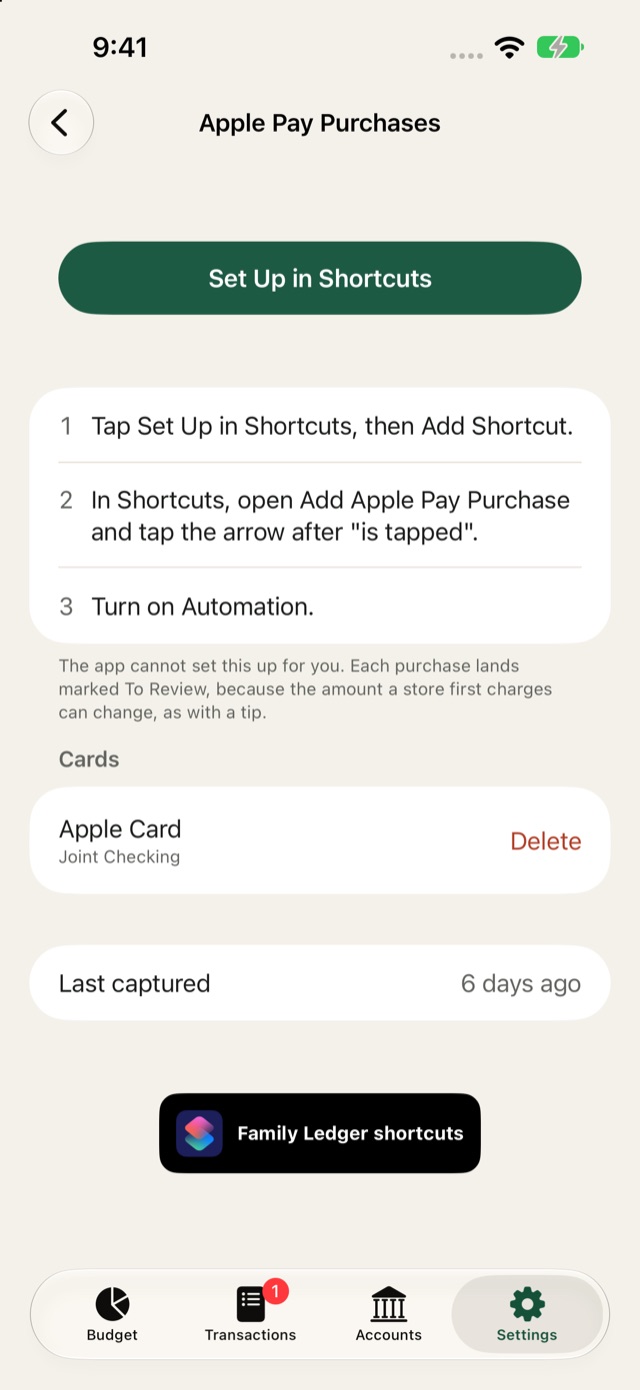
In the app, open "Settings", then tap "Apple Pay Purchases" under "Importing". It has one "Set Up in Shortcuts" button.
iOS 27 or later
- Tap "Set Up in Shortcuts", then "Add Shortcut".
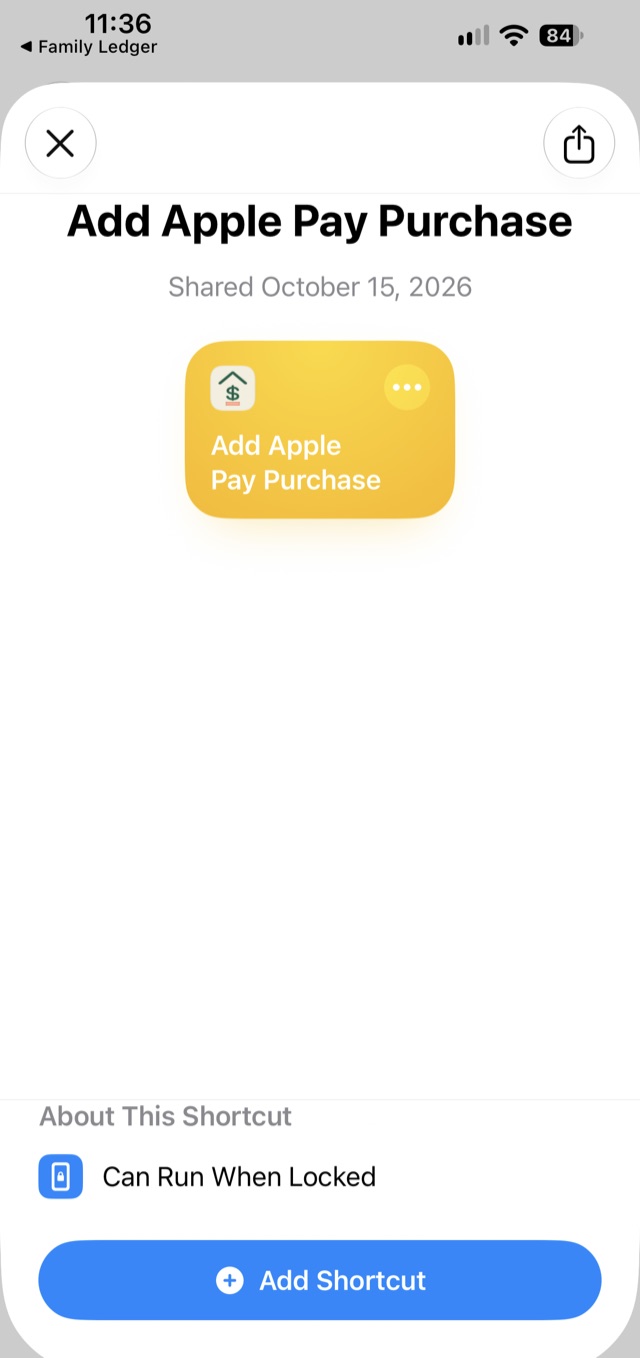
Tap "Add Shortcut". 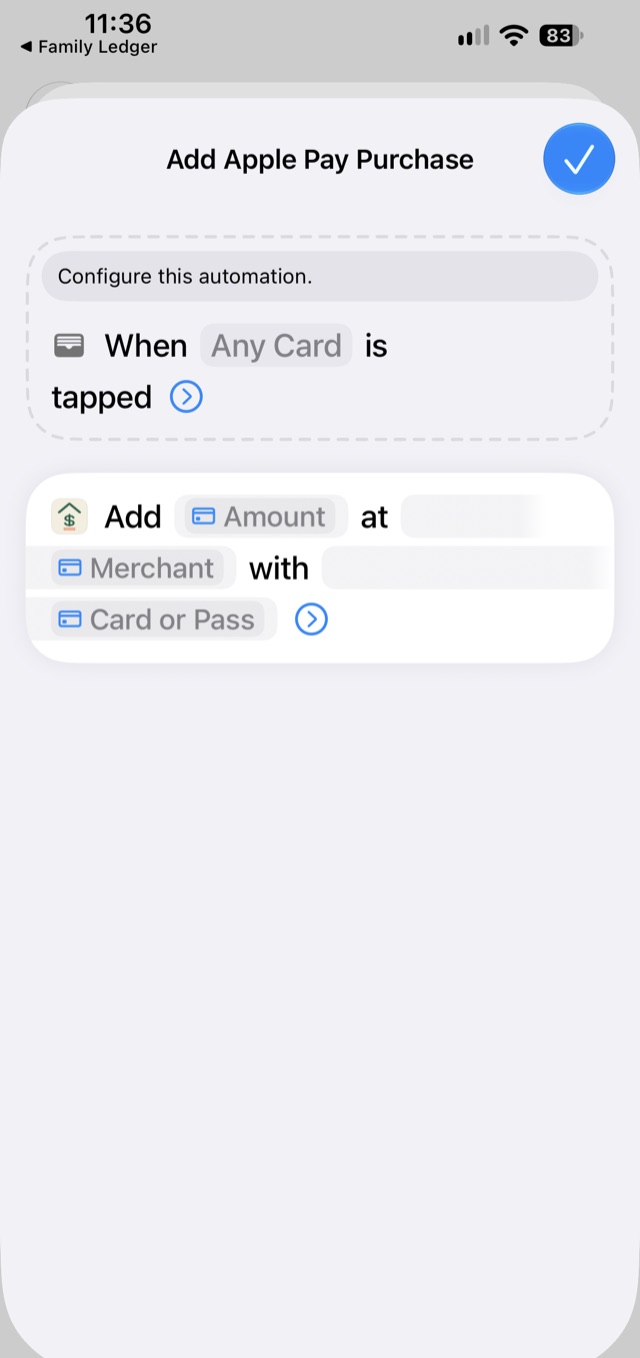
Tap the checkmark. - In "Shortcuts", open "Add Apple Pay Purchase" and tap the arrow after "is tapped".
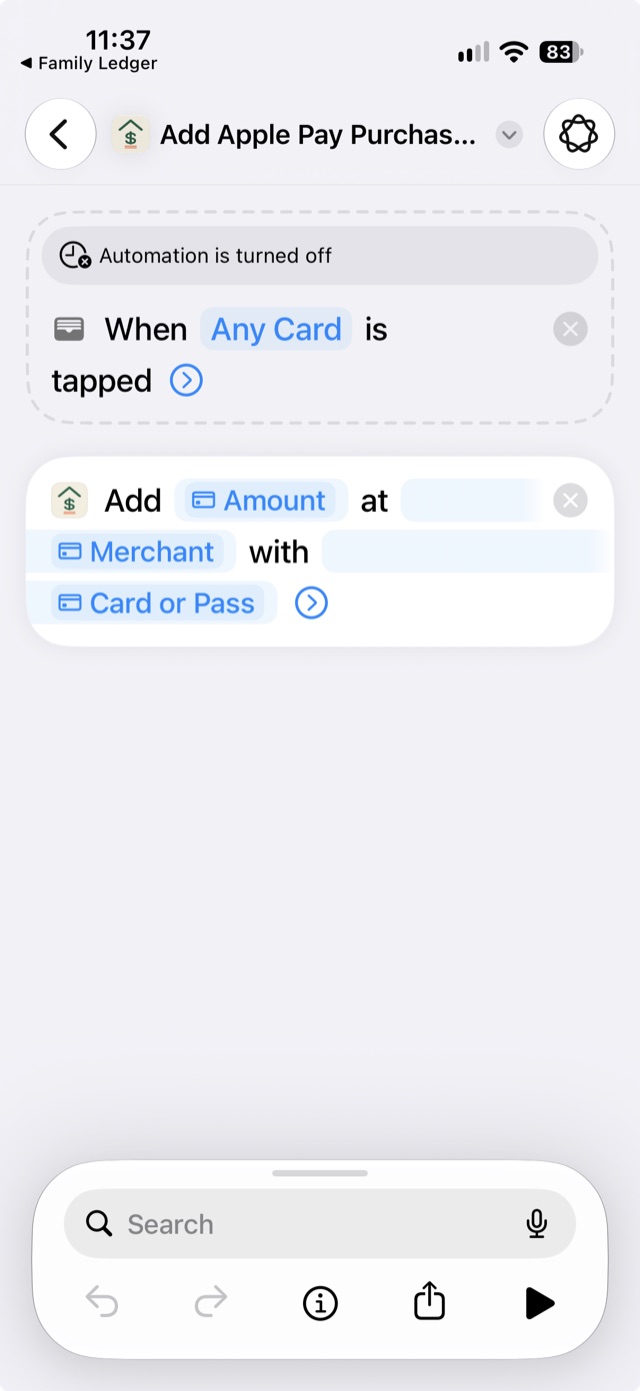
Tap the arrow after "is tapped". - Turn on "Automation".
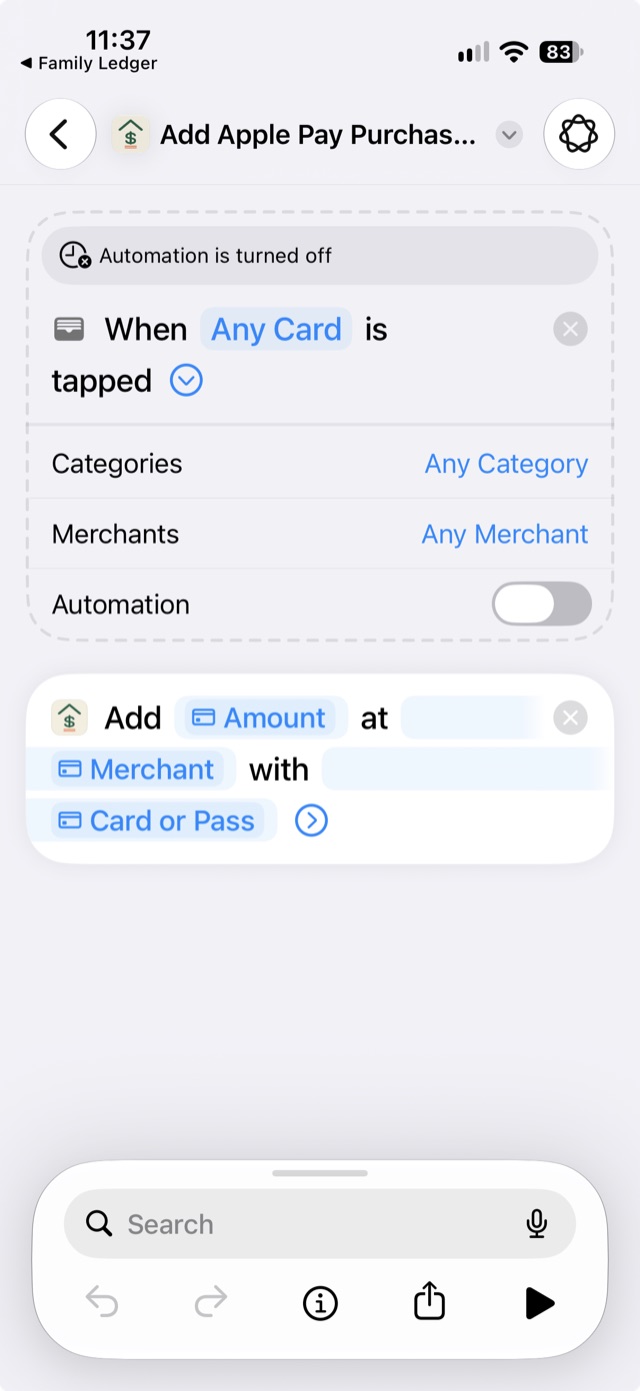
The expanded "When Any Card is tapped" section, with "Automation" off. - Optional: turn on Notify.
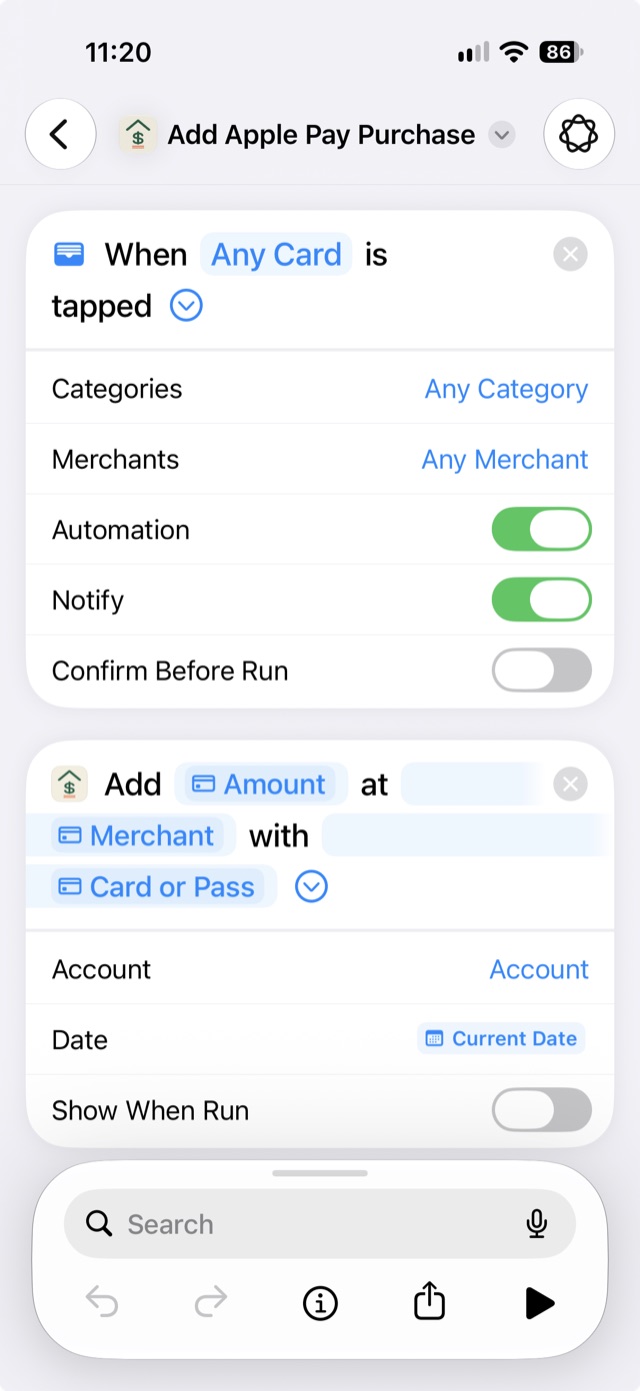
The finished setup.
iOS 26
- Open "Shortcuts". In "Library", tap "Automation", then "+".
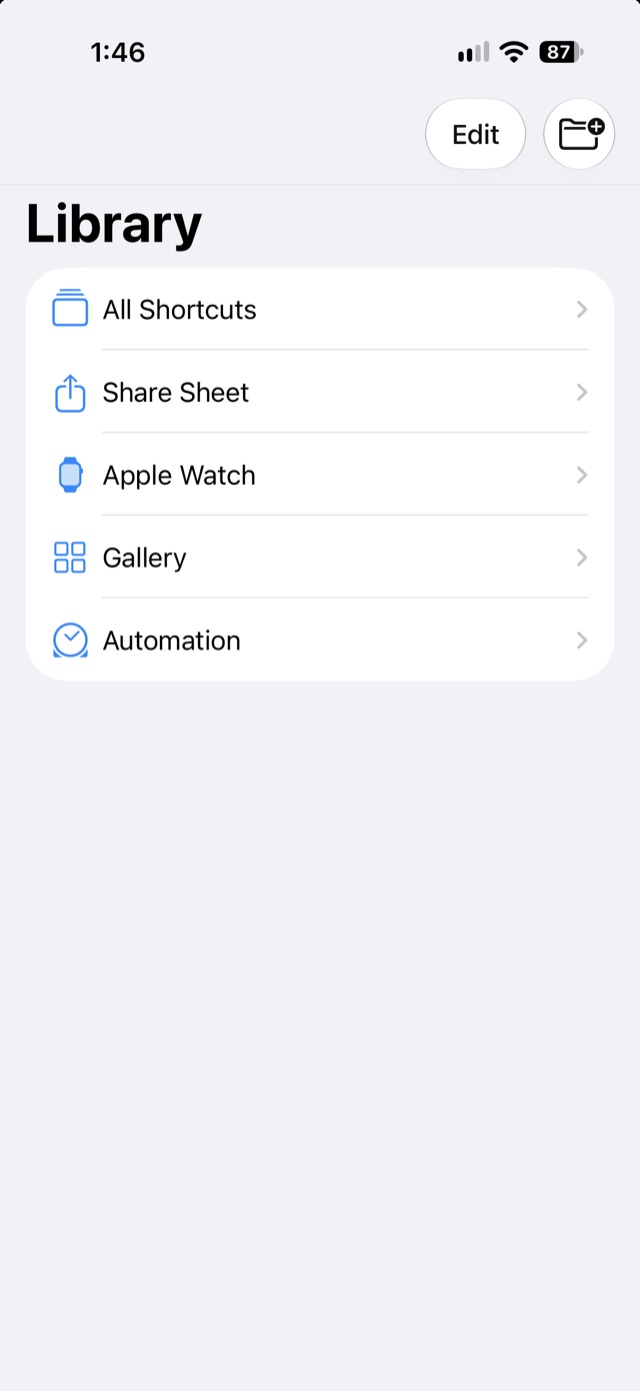
Tap "Automation" in the "Library". 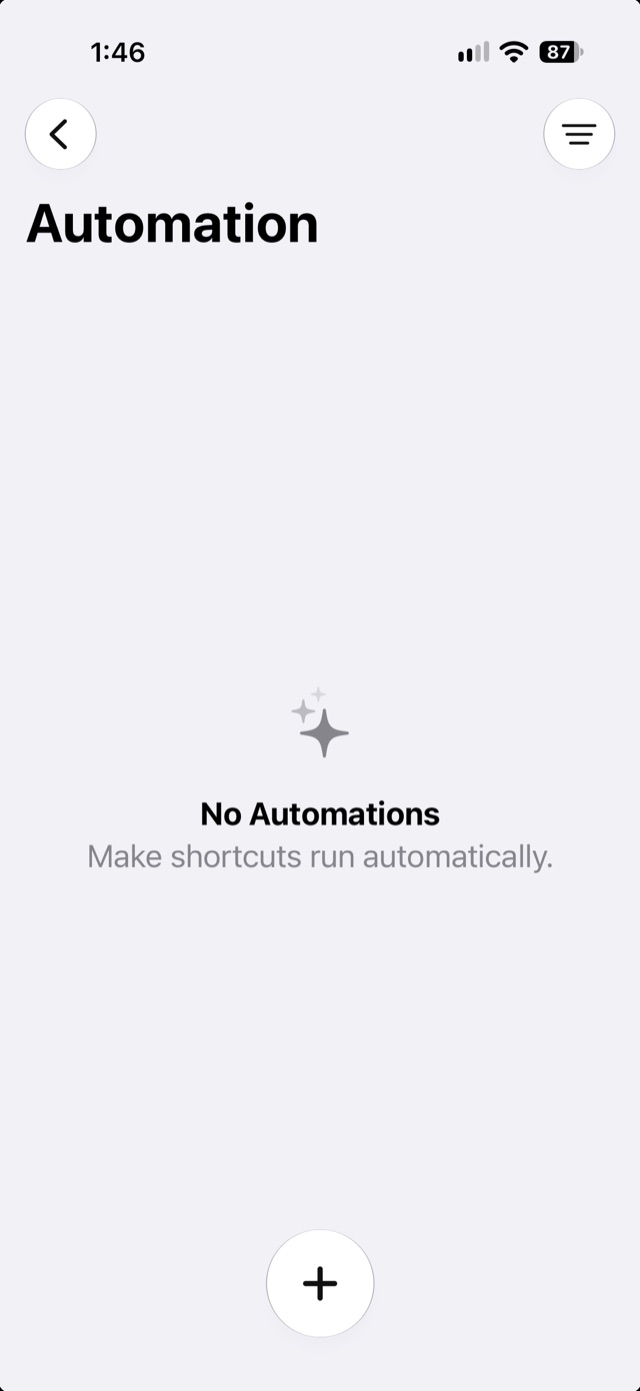
Tap "+" to start a new automation. - Tap "Edit", then the "Automation" button, then "Wallet".
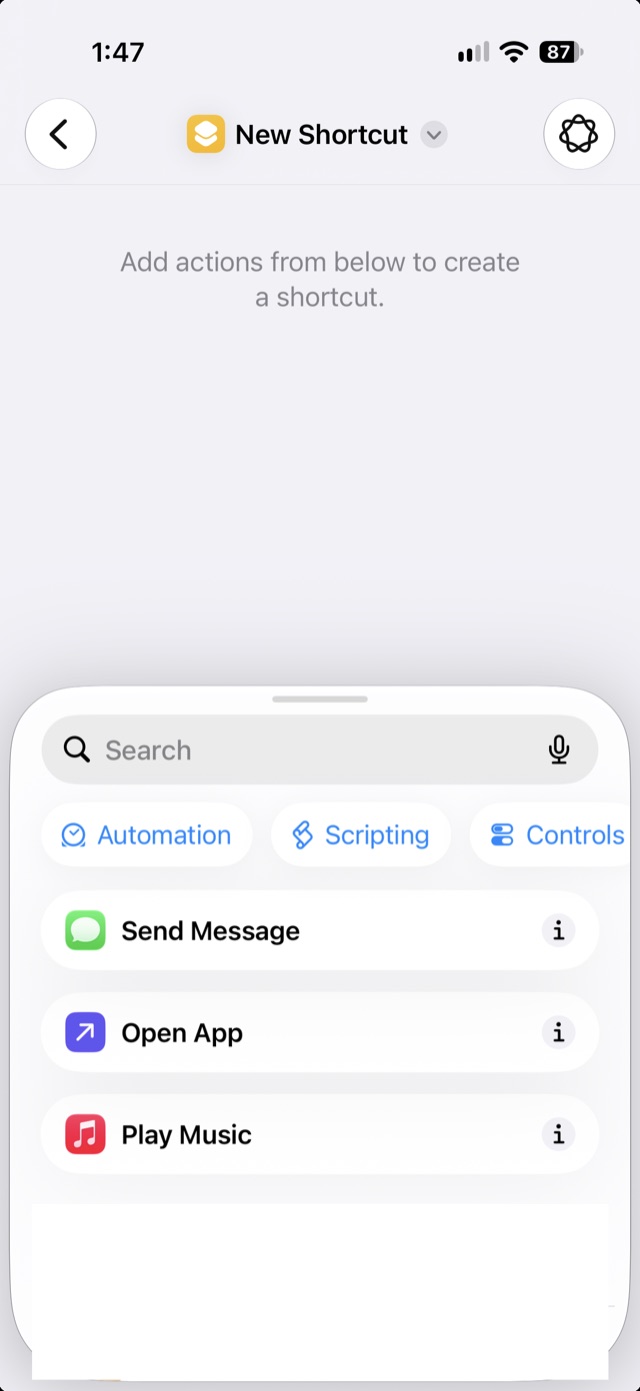
Tap the "Automation" button in the action panel. 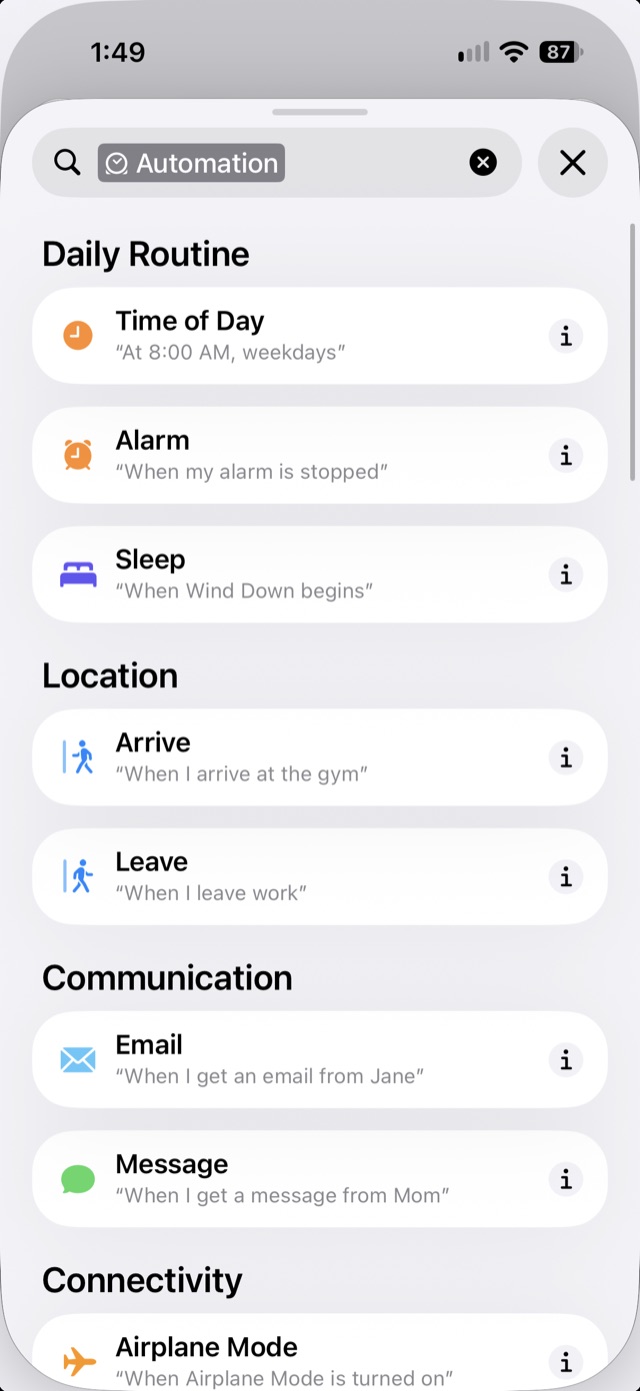
Scroll the trigger list down to "Apps". 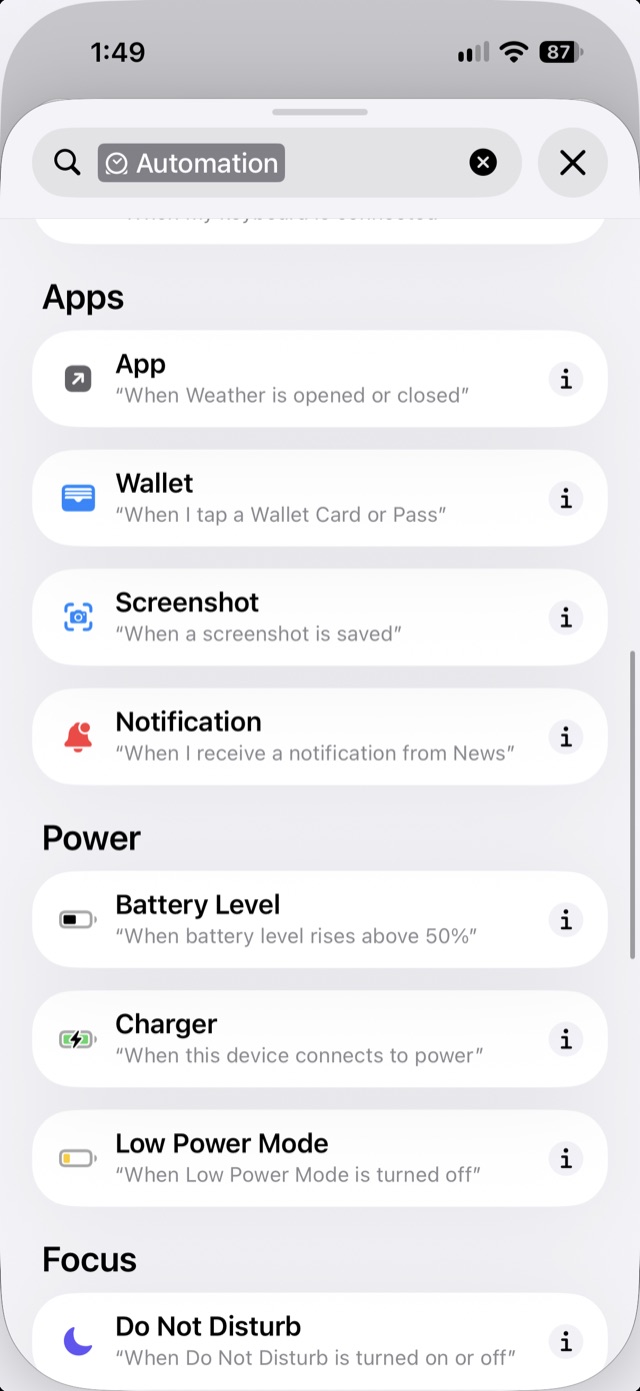
Choose "Wallet", "When I tap a Wallet Card or Pass". - Search for "Add a Purchase" and add the one from Family Ledger.
- Tap "Amount", then "Select Variable", "Transaction" and "Amount". Set "Payee" the same way to "Merchant", and "Card" to "Card or Pass".
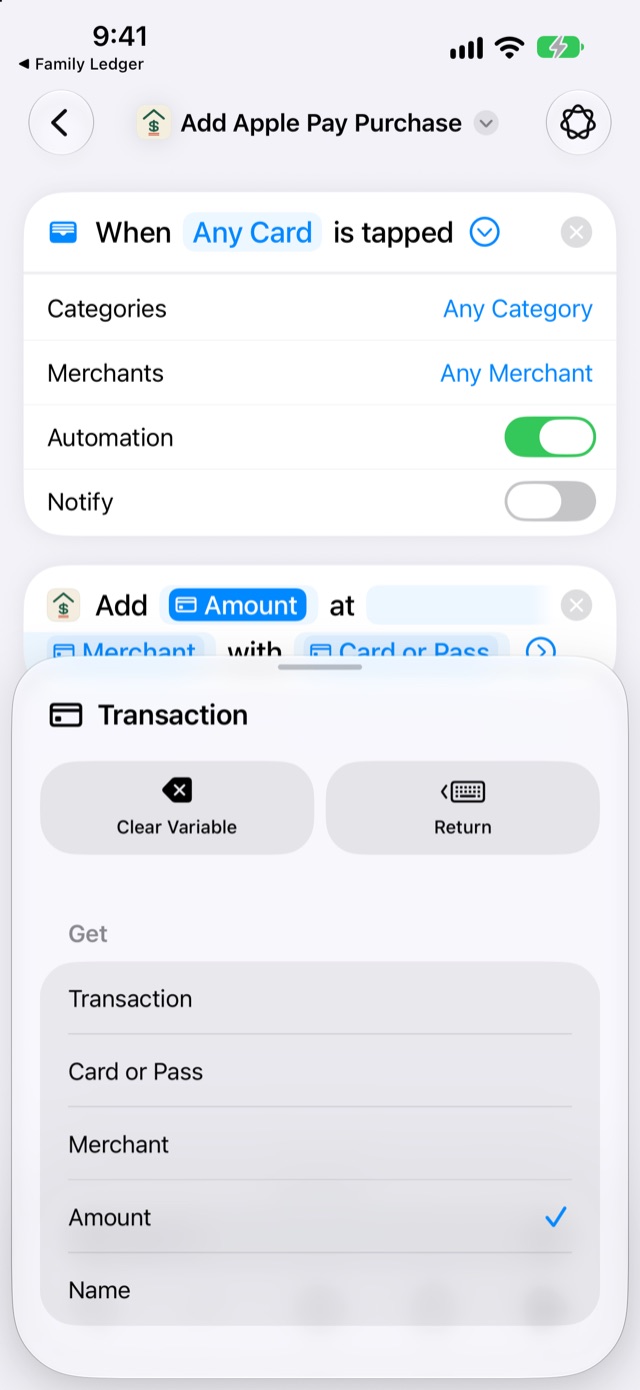
Choose "Amount" for "Amount". 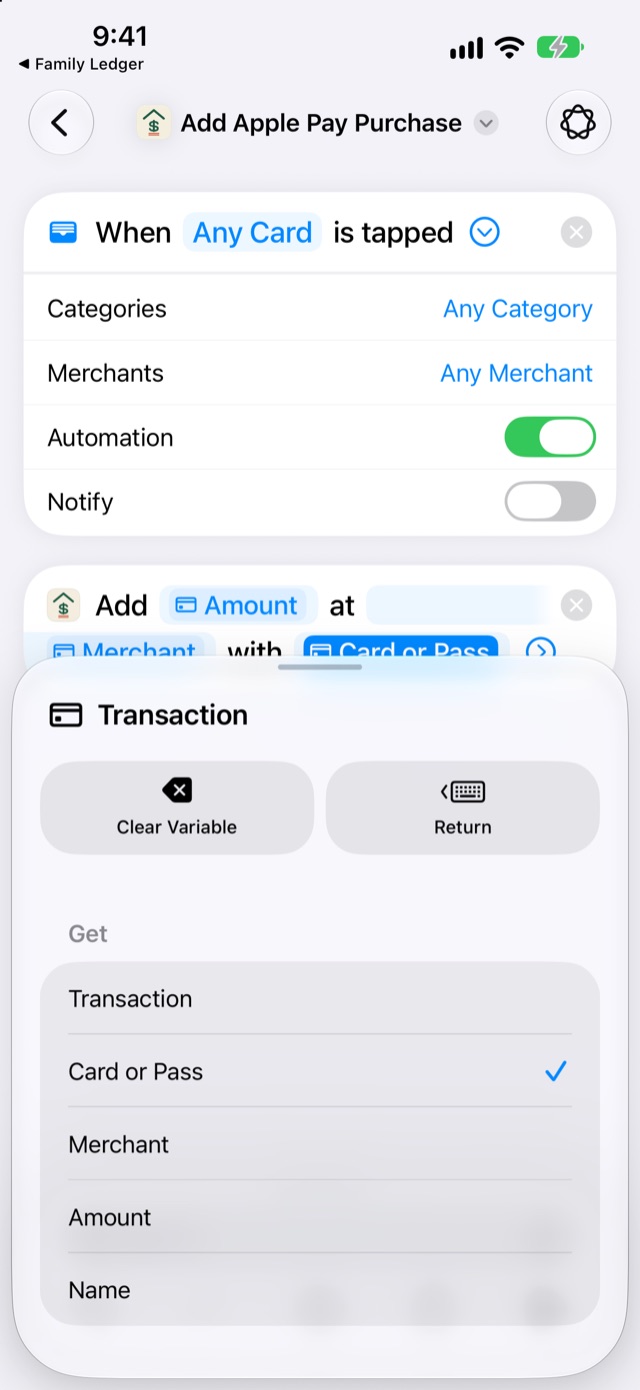
Set "Card" to "Card or Pass". - Tap "ⓘ", then "Privacy", and turn on "Allow Running When Locked".
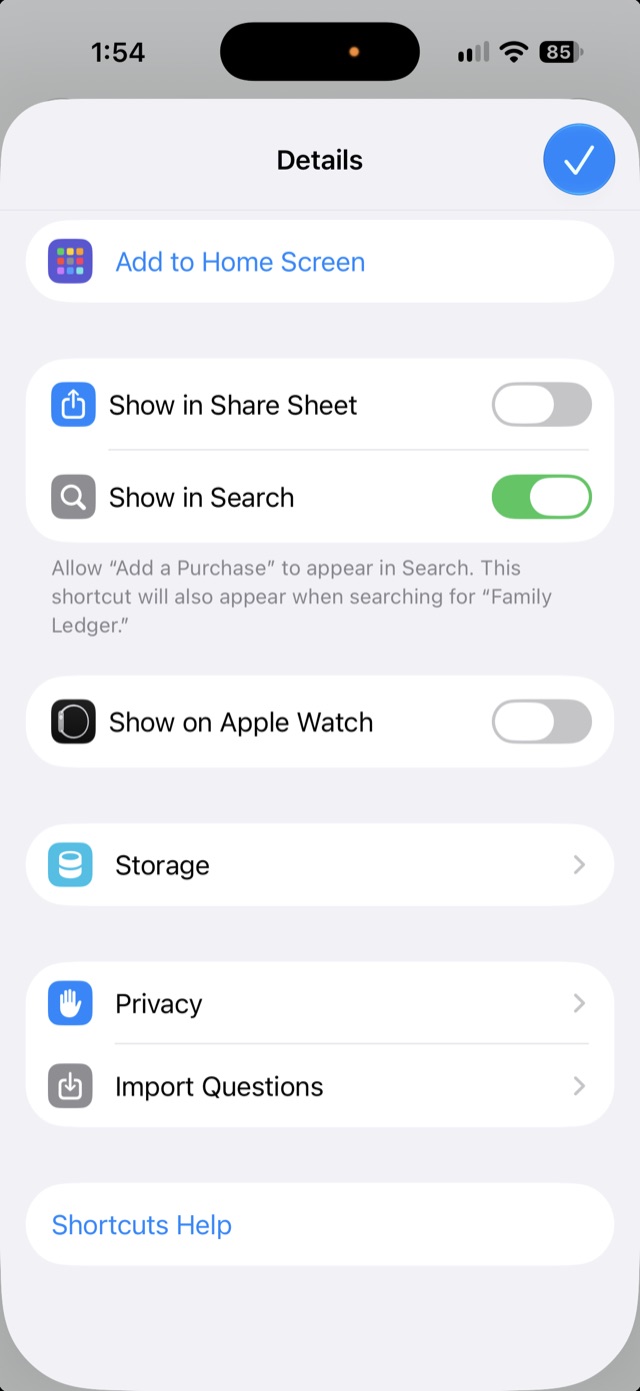
Tap "Privacy". 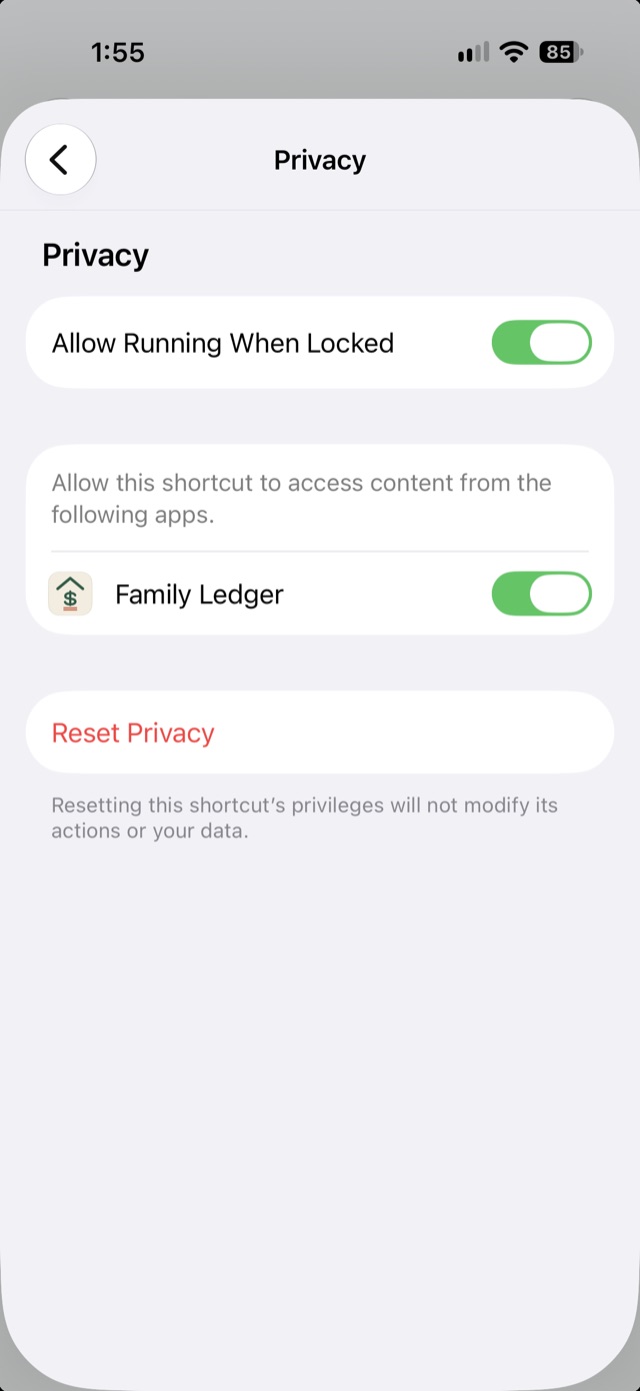
Turn on "Allow Running When Locked".
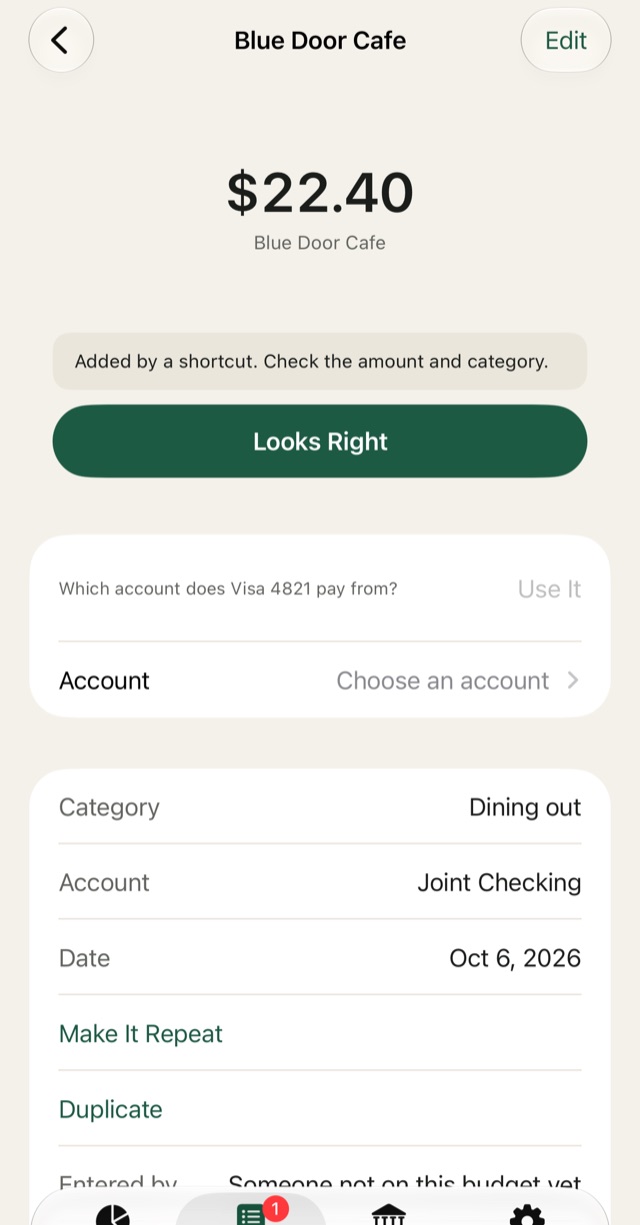
Each purchase lands marked "To Review", because the amount a store first charges can change, as with a tip.
When a purchase comes from a card the app hasn't seen, it goes to your first account and is marked for review. Open it and the app asks "Which account does card pay from?" If an account's name matches the card, it's already chosen. Otherwise tap "Account" and choose the account that card pays from. Then tap "Use It". This purchase, and every other purchase from that card still waiting for review, moves to that account, and later purchases from that card go there on their own. This question shows only on iPhone.
The setup screen lists each card and its account, with "Delete". It shows "Last captured" with when the last purchase came in.
If nothing comes in within 7 days of first opening setup, the screen and one notification say "No Apple Pay purchases have come in yet. Check that the automation is turned on."
Still stuck? Contact us.